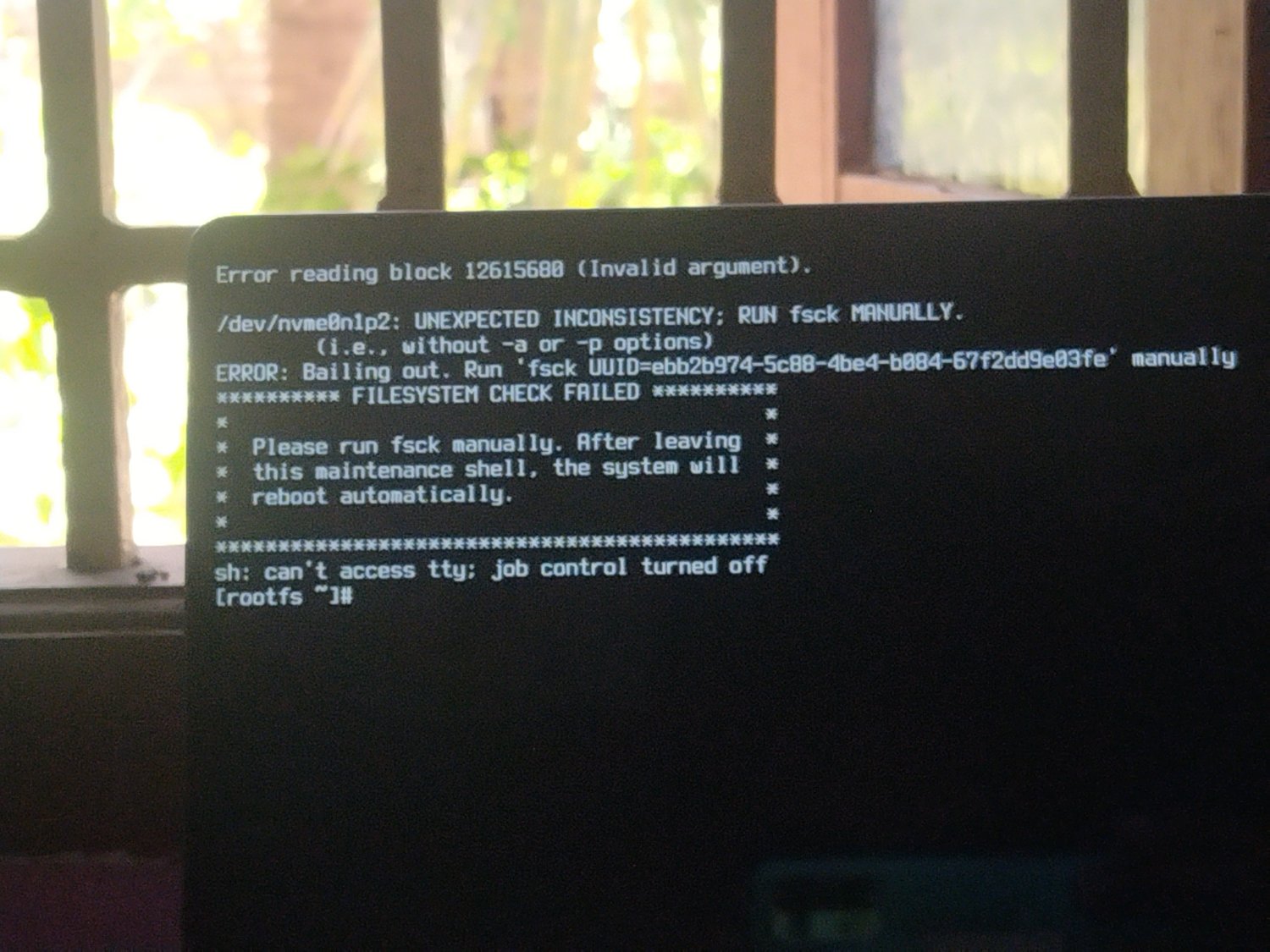
I was editing my disk and when i wrote the changes and exited cfdisk, no cli command worked. Thats when i realized that im f-ed up.
This what happened:
I have 3 partitions, 512M efi, a 100G root partition and some free (unallocated) space. I had 84G worth data in the root patition. I totally forgot that and shrinked the root partition to 32G to extend the free space. I was using cfdisk tool for this. I wrote the changes and rebooted my machine, by long pressing power button coz no cli commands worked after writing those chrnges, to see this.
So is it possible to recover my machine now?
:_ )
SOLUTION
Thanks to @dgriffith@aussie.zone.
cfdisk just updates the partition table. So no worry about data damage . To fix this, live boot -> resize the partition back its original size -> fsck that partition. For more explanation, refer @dgriffith@aussie.zone comment
just to add a little more explanation to what the other posters are suggesting… a hard drive, from the perspective of your OS is very very simple. it’s a series of bytes. for the sake of this example, let’s say there are 1000 of them. they are just a series of numbers.
how do you tell apart which numbers belong to which partitions? well there’s a convention: you decide that the first 10 of those numbers can be a label to indicate where partions start. e.g. your efi starts at #11 and ends at #61. root at starts at #61 and ends at #800. the label doesn’t say anything about the bytes after that.
how do you know which bytes in the partions make up files? similar sort of game with a file system within the bounds of that partion - you use some of the data as a label to find the file data. maybe bytes 71-78 indicate that you can find ~/.bash_histor at bytes 732-790.
what happened when you shrunk that root partions, is you changed that label at the beginning. your root partion, it says, now starts at byte #61 and goes to #300. any bytes after that, are fair game for a new partion and filesystem to overwrite.
the point of all this, is that so far all you’ve done is changed some labels. the bytes that make up your files are still on the disk, but perhaps not findable. however - because every process that writes to the disk will trust those labels, any operation you do to the disk, including mounting it has a chance to overwrite the data that makes up your files.
this means:
- most of your files are probably recoverable
- do not boot the operating system on that drive, or any other that will attempt to mount it, because you risk overwring data
- before you start using any data recovery tools, make a copy of the raw bytes of the disk to a different disk, so that if the tools mess up you have an option to try again
ONLY after that is done, the first thing I’d try is setting that partion label back to what it used to say, 100gb… if you’re lucky, everything will just work. if you aren’t, tools like ‘photorec’ can crawl the raw bytes of the disk and try and output whatever files they find.
good luck!
Yeah i remember now. I have to format the partitions to complete partitioning. Thanks for info
just restore the backup you made like reasonable people do
But the backup is on the hard drive. /s (but also not necessarily)
Live boot and fsck
There’s something to know in the future, which others don’t seem to have mentioned. Resizing a partition is 2 steps: resizing the filesystem, and resizing the partition.
When shrinking, you first resize the filesystem, and with this you make sure that the filesystem does not want to use data outside of the wanted shrinked size. If that not possible because you don’t have enough free space, the shrink operation should tell that. After shrinking is done, you can continue with changing the partition table, to actually resize the partition.
When expanding you first expand the partition (so that the fs will have room to expand to), and then expand the filesystem.
If you’re familiar with partitioning from the tools of microsoft windows, it’s disk manager does the 2 steps without you noticing. This is just how most graphical partition managers work.
But it’s important to be aware that the partition and the filesystem is not one and the same object. The filesystem resides in the partition like your feet does in your shoes, and the beginning of the partition helps for the system to find the beginning of the file system, which must end at the partition’s end (or before that, but that’s not efficient).If you prefer graphical partition managers (I do too, it’s much easier), Linux has a few of them. I recommend you to use GParted. It’s a Linux based pendrive-bootable partition editor. They have an official live image, but I would recommend using the SystemRescue system (a live system too), which includes that and many other tools.
In this case, that the problem had already happened, it may or may not be easier to use this.I always love working with partitions because of the knowledge it gives you, but it is also certainly dangerous and from time to time it is unnevitable to suffer an accident. In any case I always try to do this type of operations with parted and if possible with GUI (gparted).
Being in the photo situation, can’t you make a fsck as the error messages tell you?
fsck /dev/nvme0n1p2
If not, the most practical would be, IMHO, to boot from a rescue live, e.g. https://www.system-rescue.org/Download/ Once booted, you can lift the graphical interface with startx and do with gparted the operations you need on these partitions.
For sure.
For
fsck /dev/nvme0n1p2: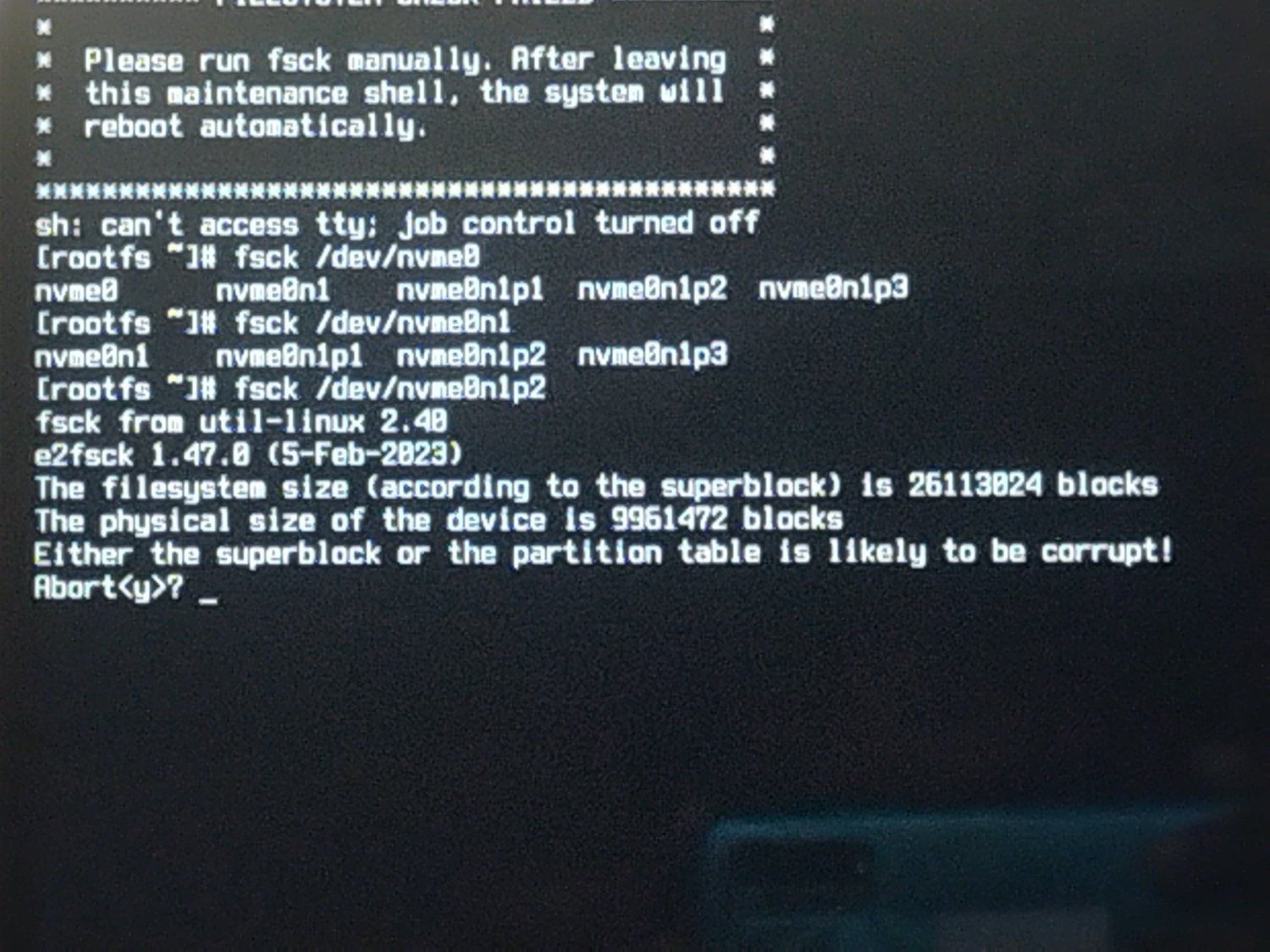
The existing file system appears to have been damaged possibly because cfdisk has not adjusted (shrinked) the existing file system before changing the partition settings. In my case, this kind of thing I only dare to do with gparted if partitions contain file systems with data.
I would try the second option I mentioned above, as my last chance: to start a live-rescue and look that allows us to gparted, but I am not very optimistic about it
You can try to revert your previous setup with : https://www.cgsecurity.org/wiki/TestDisk
This has saved so many files from my mistakes before.
That was going to be my suggestion as well. Testdisk should be able to fix this easily.
Yes try this if you want to find your partition.
maybe not the best guide, but you can start doing partition recovery here
The most important thing you should do is never boot into that disk again until you have made a full backup image of it.
Looks like you messed up the partition table. Try scandisk, it may be able to find your partitions.
I’d boot on ArchISO, get all data I need to a external drive and install Arch from scratch, btw
So what should i do.
- Boot into arch iso
- Mount my disk and copy files
- And install arch
But i wonder if the mounting part will work. Coz of the mess ive made. I just have to try it ig.
I have shrunken a APFS partition (macOS) too much lately and was still able to mount it read only using Linux and back up all stuff I needed. But that depends on how corrupted this partition is now.
Maybe you need something like Gparted live ISO in order to get to your data. Check out the Command Line Utilities on that webpage, maybe there is the savior of your data
And about the arch installation, if you want easy mode, just type “archinstall” after ArchISO has booted and your PC is connected to the internet (phone connection via USB works to get internet connection)
I believe in you. Just have the ArchWiki open. It’s really going to be your friend if you’ve not compiled Arch from scratch before.